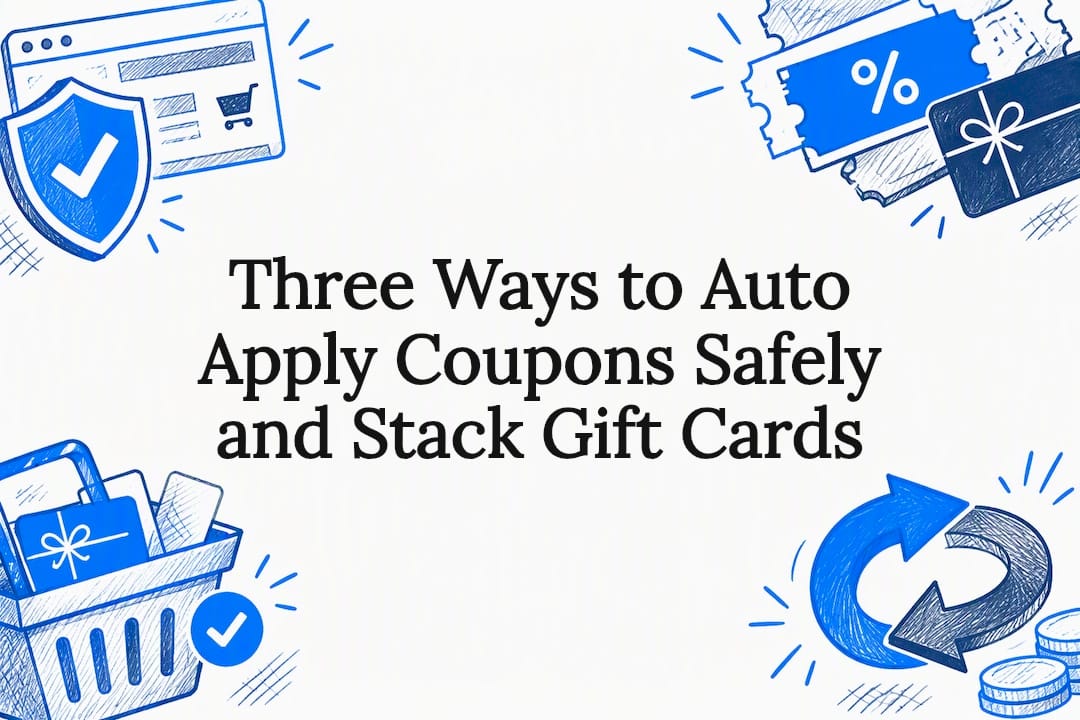
Yes, you can have coupons applied automatically. Three main routes make it happen: browser extensions that test codes in your cart, retailer auto-apply systems built into a store’s checkout, and platform plugins that trigger discounts when cart conditions are met. Each comes with its own privacy trade-offs, and the biggest savings usually come from stacking automation with cashback or discounted gift cards rather than relying on any single tool.
TL;DR:
- Auto-apply coupon tools depend on the platform: browser extensions test codes locally, retailer systems recognize accounts and apply deals server-side, and store plugins automatically trigger discounts based on cart conditions.
- Extension permissions for coupon testing can access broad browsing data, raising privacy concerns, and using only one trusted extension reduces the risk of conflicts or breakage during checkout.
- Store owners set up auto-apply coupons via plugins that define conditions and restrictions, typically allowing only a limited number of overlapping discounts to prevent loss on sales.
- Combining automation with cashback and exclusive gift cards yields the best savings, especially for larger purchases, since public codes are limited to already published discounts.
- Privacy breaches like those involving Avast and GoodRx highlight the importance of checking extension permissions and privacy policies before allowing continuous background access.
Table of Contents
- What auto-apply coupon tools do and the types you’ll encounter
- How shoppers use auto-apply tools safely
- How store owners set up auto-apply coupons
- Maximizing savings: combine automation with cashback, discount gift cards, and one-time-use coupons
- Privacy and enforcement examples that matter
- Quick checkout checklist: step-by-step at-checkout actions
- When automation is worth the trade-off
- Checkout Saver: how this platform complements auto-apply workflows
- Primary docs and authoritative links to verify instructions and privacy claims
- Sources
- FAQ
What auto-apply coupon tools do and the types you’ll encounter
Auto-apply tools all solve the same problem: nobody wants to hunt for codes at checkout. The mechanics differ depending on where the automation lives.
A browser extension sits in your browser and scans a database of known codes when you land on a cart page. It tests them one by one, sometimes in a visible pop-up window, and keeps whichever code produces the biggest discount. This happens client-side, meaning the extension itself is doing the work inside your browser rather than the retailer’s system.
Retailer auto-apply works differently. The store’s own checkout recognizes a signed-in account and applies eligible offers on the server side, with no code entry required. Target Circle is a clear example: most Circle deals, including coupons and bonus offers, apply automatically once a shopper is logged in, and any saved deals can be managed from the Circle dashboard or app.
Platform plugins serve the store owner’s side of the equation. Tools like Smart Coupons for WooCommerce let a merchant set rules so a coupon fires the moment a cart meets certain conditions, such as a minimum spend or a specific product in the cart.
A few features and constraints show up across all three types:
- Cashier detection: some extensions flag when you’re on a checkout page versus browsing, so they only activate at the right moment.
- Cashback linking: several tools pair code-testing with a cashback tracker, so one click both applies a discount and starts tracking a rebate.
- Device limits: many extensions work only on desktop browsers, leaving mobile shoppers without the same automation.
- Code restrictions: most auto-tested codes are single-use or excluded from sale items, so a tool that finds a match one week may fail the next.
Understanding which type you’re using matters because the safety considerations, and the fixes when something goes wrong, are different for each.
How shoppers use auto-apply tools safely
An extension that tests coupon codes usually needs to read and change data on every page you visit, which is a broad permission by design. That is worth pausing on before installing anything.
When you check an extension’s permission request, watch for scopes like “read and change all your data on all websites you visit.” That is normal for code-testing tools since they need to see the cart page to work, but it also means the extension can see far more than your shopping activity if the developer chooses to collect it. A narrower permission tied to specific retail domains is a better sign than a blanket grant.
Running more than one shopping assistant at once tends to backfire. Two extensions competing to apply a code in the same field can cancel each other out, break a cashback click, or trigger duplicate discount attempts that the store’s checkout rejects. Stick to one primary tool and give it room to work.
A few habits keep things cleaner:
- Check your browser’s extension settings periodically and remove anything you no longer use.
- Review opt-out options through the Digital Advertising Alliance or the Network Advertising Initiative if you want to limit ad-tracking tied to browsing data.
- Test a new extension with a low-stakes order before trusting it with a large purchase.
- Read the permissions screen every time you install an update, not just the first time.
Pro Tip: Keep a separate browser profile just for shopping. It isolates coupon and cashback extensions from your everyday browsing and makes it obvious if a new tool starts behaving oddly.
How store owners set up auto-apply coupons
For merchants running WooCommerce, auto-apply coupons are handled through plugins built specifically for this, and the setup is more straightforward than it sounds.
- Install and enable the plugin. Smart Coupons for WooCommerce and similar tools like the Auto Coupons plugin from WebToffee both add an “apply coupon automatically” option when creating a new coupon.
- Create the coupon and set its conditions. Define the discount type, minimum cart value, or eligible products, following the steps in the WooCommerce Smart Coupons documentation.
- Set restrictions and priority. If more than one auto-apply coupon could qualify for the same cart, priority settings decide which one fires first, and product or category exclusions prevent unwanted stacking.
- Publish and monitor. Once live, the coupon triggers automatically whenever a shopper’s cart meets the saved conditions, with no code entry needed.
Most plugins cap how many auto-applied coupons can stack in a single cart, commonly between three and five, according to the WooCommerce documentation. That default exists to stop discounts from compounding into a loss on the sale, and store owners can adjust it depending on their margins.
A few best practices make auto-apply smoother for customers:
- Keep the applied discount visible in the cart summary so shoppers know it worked, rather than showing only the final price.
- Give customers a way to remove an auto-applied coupon if they have a better one, instead of forcing the automatic discount.
- Test new coupon rules in a staging environment before pushing them live, and watch checkout completion rates afterward to catch any conflicts.
Maximizing savings: combine automation with cashback, discount gift cards, and one-time-use coupons
Auto-apply tools handle the code-testing part, but they are not the only lever available. The order you activate things in changes how much you actually save.
Start with cashback tracking. If your extension or a separate cashback platform needs an activation click before you shop, do that first, since cashback that starts after you have already added items to your cart often does not register properly. Checkout Saver’s cashback program works this way: activate it, then shop, and the rebate tracks in the background.
Once cashback is running, let the auto-apply extension test codes at checkout the way it normally would. This layer catches percentage-off or free-shipping codes that might not require manual stacking rules.
The last layer is where curated offers outperform automation. A one-time-use coupon or a discounted gift card usually is not in any public code database, so no extension will ever find it on its own. This is where automation and curated offers diverge: automation is fast and free but limited to codes that are already public, while a marketplace like Checkout Saver sells exclusive one-time-use coupons and discount gift cards that were never published for a scanner to find.
A practical stacking sequence looks like this:
- Activate cashback tracking before adding anything to your cart.
- Let your auto-apply extension test public codes at checkout.
- Apply a discount gift card or an OTU coupon at the payment step if the retailer allows it.
- Confirm the final total reflects all three discounts before submitting payment.
Automation is the right tool when you want convenience and do not mind settling for whatever public code happens to work. Curated gift cards and coupons are the better call when you are making a larger purchase and want a bigger, guaranteed discount instead of a coin flip.
Privacy and enforcement examples that matter
Coupon automation runs on browsing data, and regulators have shown what happens when that data is mishandled.
The FTC’s order against Avast required the company to pay $16.5 million and banned it from selling browsing data for advertising purposes, after the agency found the data had been collected under one pretense and monetized under another, according to the FTC’s February 2024 press release. It is a direct warning for anyone installing a browser extension: the tool that watches your cart to apply a coupon can, in principle, watch everything else too.
A separate case involving GoodRx raised similar themes, with the FTC’s consumer alert describing how a coupon platform shared sensitive user activity with advertising partners. The lesson carries over to shopping extensions: a tool that can see your browsing habits has the technical ability to share far more than just which coupon worked.
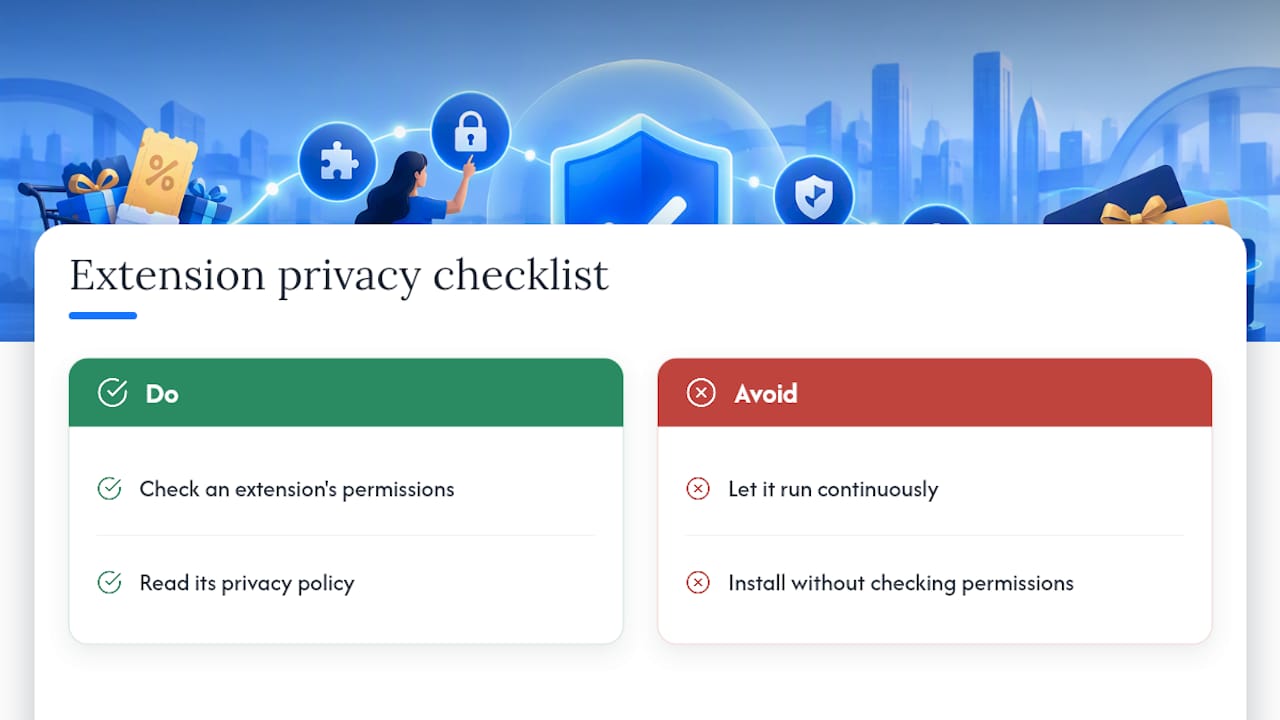
Two habits limit exposure: check what permissions an extension actually holds, not just what it asks for at install, and read the privacy policy for any tool before letting it run continuously in the background.
Quick checkout checklist: step-by-step at-checkout actions
Run through this before finalizing any online order:
- Turn on cashback tracking before adding items to your cart.
- Confirm your extension’s permissions and enable auto-apply if it offers the option.
- Let the extension test codes at checkout.
- Apply a discount gift card or one-time-use coupon at payment if the store allows it.
- Verify the final total reflects every discount before submitting.
If a code fails or the extension freezes, try a private browsing window, clear your cache, or disable other extensions that might be competing for the same checkout field.
When automation is worth the trade-off
Automation earns its place when you are buying something ordinary and just want the best public code without effort. It earns less trust when the purchase is large enough that a curated, exclusive discount would beat whatever a scanner finds. The honest trade-off is time versus depth of savings: a free extension costs you some data exposure for a modest, capped discount, while a one-time-use coupon or discounted gift card takes a few extra minutes to source but often delivers more.
— Justin
Checkout Saver: how this platform complements auto-apply workflows
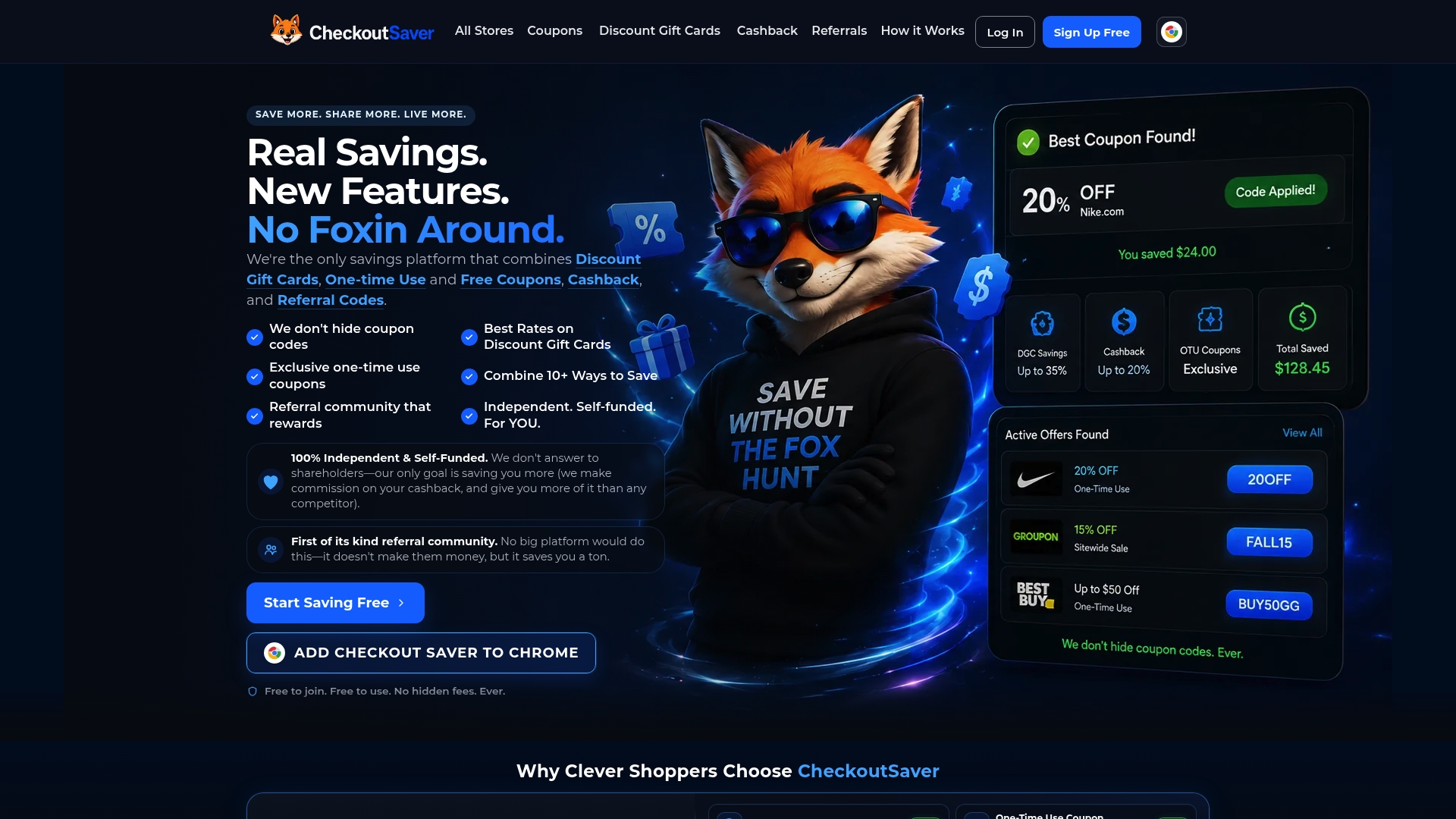
Auto-apply extensions are built to find public codes fast, but they cannot see offers that were never published anywhere for a scanner to index. That is the gap Checkout Saver fills. The marketplace sells discount gift cards and exclusive one-time-use coupons alongside cashback rewards, and it does this with no coupon codes hidden behind a paywall, which is a meaningful difference from sites that gate their best codes.
Shoppers who want to pay with cryptocurrency can buy gift cards with Bitcoin or Ethereum, often below face value, adding another discount layer on top of anything an extension finds. A practical combination looks like this:
- Buy a discounted gift card for the store you’re shopping at, then use it as your payment method.
- Let your browser extension test public codes at checkout as usual.
- Apply an exclusive OTU coupon at payment if the retailer’s checkout supports stacking.
Some platforms run referral communities and let members sell unused coupons for cash, giving buyers and sellers a way to participate in the same marketplace. Browse the full coupon library covering thousands of stores to see what pairs well with your next order.
Primary docs and authoritative links to verify instructions and privacy claims
For readers who want to confirm any of this directly, the WooCommerce Smart Coupons documentation covers auto-apply setup for store owners, and the WebToffee Auto Coupons guide offers a comparable walkthrough with priority and restriction settings. Shoppers curious about retailer-side auto-apply can check Target’s Circle offers page for how signed-in deals work. On the privacy side, the FTC’s Avast order and its GoodRx consumer alert both document real enforcement action tied to browsing-data misuse.
Sources
- How to Auto Apply Coupons in WooCommerce — WooCommerce documentation
- Auto Coupons for WooCommerce — WebToffee documentation
- FTC order will ban Avast from selling browsing data for advertising purposes, require payment of $16.5M — Federal Trade Commission
- Target Circle offers — Target help
FAQ
What is the best automatic coupon finder?
There is no single tool that works best for every shopper, since browser extensions, retailer auto-apply systems, and store plugins each solve a different part of the problem. The strongest approach combines one reliable extension for public codes with a cashback tracker and, for bigger purchases, an exclusive one-time-use coupon or discounted gift card that a scanner would never find on its own.
Is couponing still a thing in 2026?
Couponing has shifted rather than disappeared, moving from manual code-hunting toward automated code-testing paired with cashback tracking. Shoppers who want deeper savings than a public code offers increasingly turn to curated marketplaces for exclusive coupons and discounted gift cards.
How can I get a free coupon?
Free coupons are typically available through retailer loyalty programs like Target Circle, which auto-applies eligible deals for signed-in members, or through browser extensions that scan and test publicly available codes at checkout. Some marketplaces also list verified free coupons alongside paid exclusive ones.
Does Target auto apply coupons?
Yes, most Target Circle deals, including coupons and bonus offers, apply automatically at checkout when a shopper is signed into their account, according to Target’s own help documentation. Some exclusions apply, such as minimum purchase thresholds or items already on sale.
Recommended
- Gift Card App – Buy, Sell & Save
- How Cashback Works
- Checkout Saver Coupons: Promo Codes for 5,000+ Stores
- Coupon, Cashback & Discount Gift Card Chrome Extension